Administration interface (backend)
Tasks and responsibilities in the admin area.
In the administration interface, you as the shop operator can manage the operational processes for your online business: e.g. managing customers, maintaining content and reviewing orders.
Access
During installation, an individual access to the administration interface is set up. The URL is provided to you by the IT team.
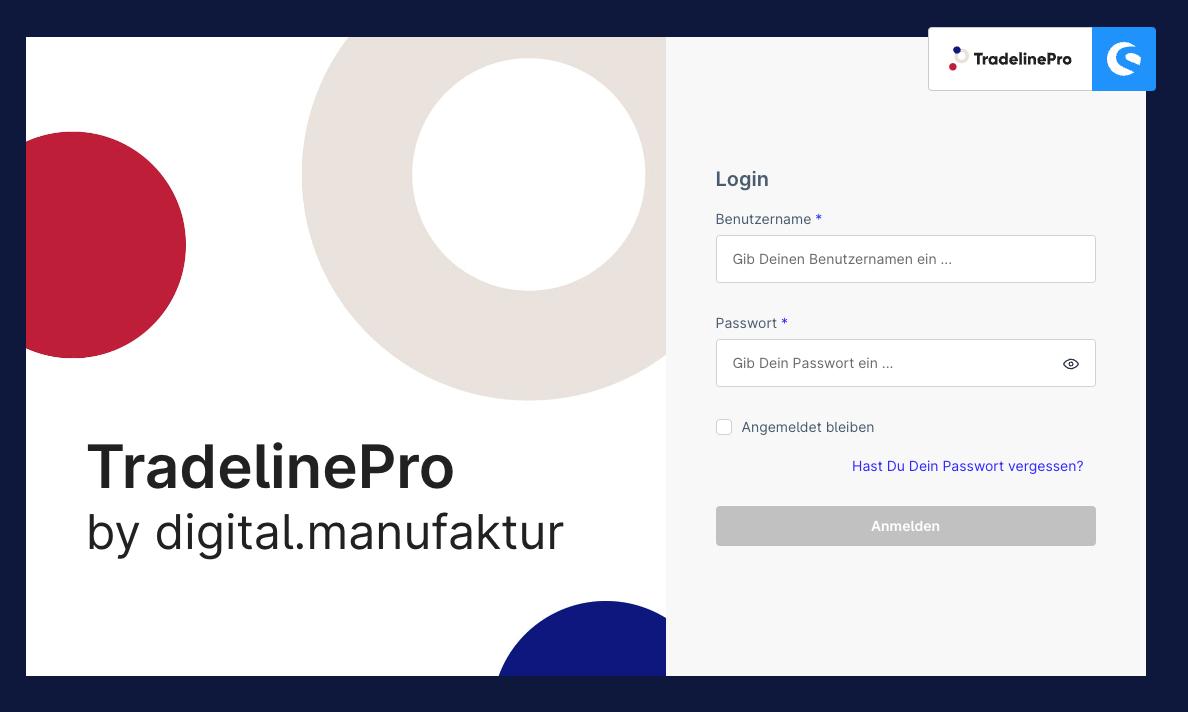
Each user signs in individually via the login screen.
Users, roles, permissions
For every person who is to be granted access to the administration interface, an individual account is provided. It is the shop manager's responsibility to do this: ⇒ Settings → System → Users & Permissions
Multi-tenancy Enterprise
The "Multi-tenancy" module is used when several sales platforms need to be represented in the TradelinePro administration interface, for example as sales subsidiaries in different countries.
With multi-tenancy, sales platforms can easily be administered in a single backend, without the staff of one subsidiary being able to see or edit the data/content/statistics of another. Alongside this, there are still administrators who have access to all content.
The module does not offer a configuration option in the classic sense. From the perspective of shop users (storefront), multi-tenancy has no impact. The separation of users is achieved via different storefronts or sales channels.
Creating a tenant role
The module automatically creates a role during installation:
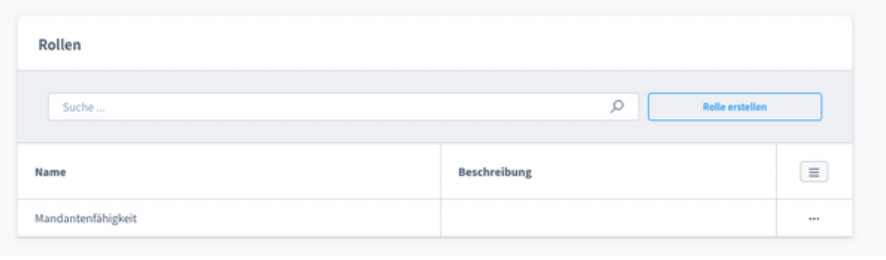
This generally allows the management of all content that can be sales-channel-specific in Shopware:
- Categories
- Products
- Orders
- Customers
Depending on requirements, further privileges can also be added or removed from this role.
Creating a tenant user
The creation of a tenant user does not differ fundamentally from that of a normal backend user. To create a new user, go to "Settings" => "System" => "Users & Permissions" in the backend. There you follow the familiar process and click on "Create user". To create a tenant, you must assign the role created above.
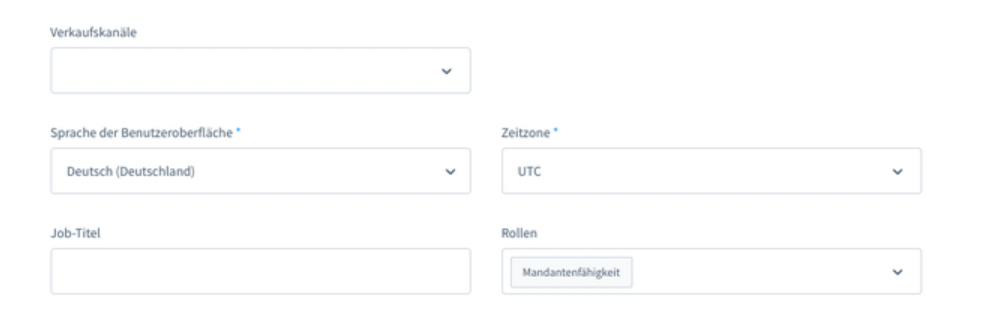
The assignment of sales channels determines which sales channels the user has access to.
As soon as a tenant user has been created, they will see a correspondingly reduced view of the backend after login:
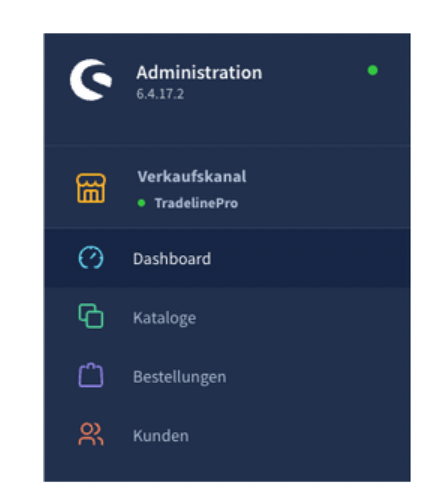
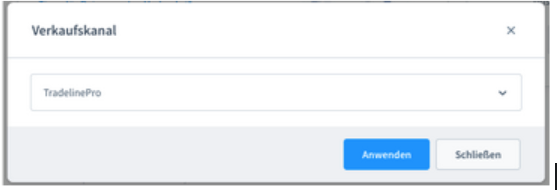
By clicking on the sales channel (first menu item), a pop-up opens in which a user who is assigned to several sales channels can switch the currently active sales channel, for example to edit the products of a different sales organisation.