
Quotes
Manage quotes as a preliminary stage to ordering.
With the "Quotes" module, you can extend your online shop with convenient quote requests and quote management.
Users can either create "pro-forma" quotes themselves via this tool or request specific products - as the shop operator, you then subsequently create a concrete, individual quote.
TIP
The quote feature in TLP provides basic options for creating quotes, oriented quite closely to the actual feature set of online shops. There is no intention to replace commercial software (e.g. ERP).
Options
- "real quotes" - quote requests with the aim of actively creating and following up quotes for the prospect as the shop operator
- "non-real quotes" - self-service quotes that the user creates themselves and that serve you as a shop operator as a lead source. These are useful when the terms in the shop are standardised and formal processes are served by the ability to create quotes.
Storefront Perspective
If the module is active, an additional "Quote Request" button appears in the cart.
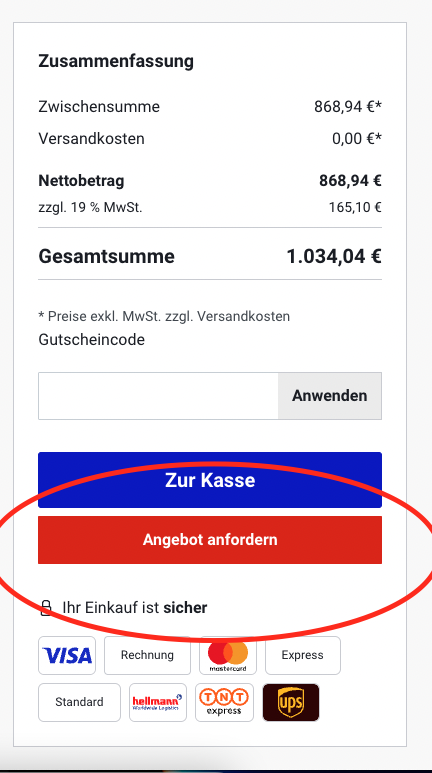
You can disable this request for guests.
It is also possible, in conjunction with the Privacy module, to ensure that guests do not see prices and can still obtain a quote for the products. To do this, however, the automatic quote creation for guests must be deactivated, as otherwise the (automatic) pro-forma quote would make prices directly visible.
In the next step, the user is asked to enter their contact details. If it is a registered user, the form is pre-filled with their data.
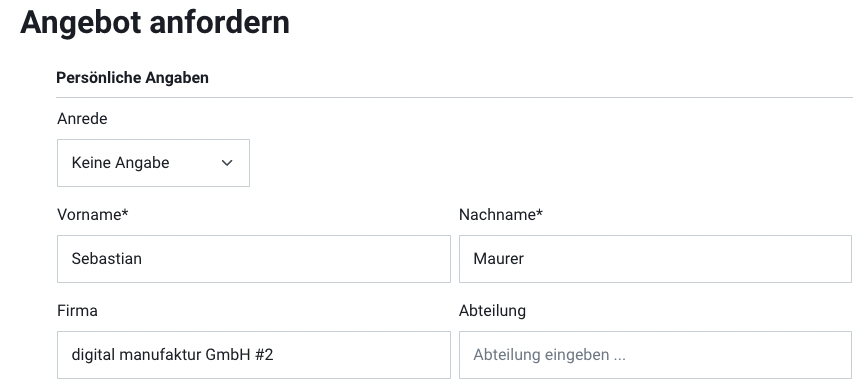
In this step, the user can now bindingly request the quote by clicking the button.
The user sees a confirmation page and receives a confirmation email. If the "Create quote automatically" mode is active, the link to the PDF quote is sent directly.
Communication with guests always takes place by email. This email contains a link to a "hidden" page with the quote.
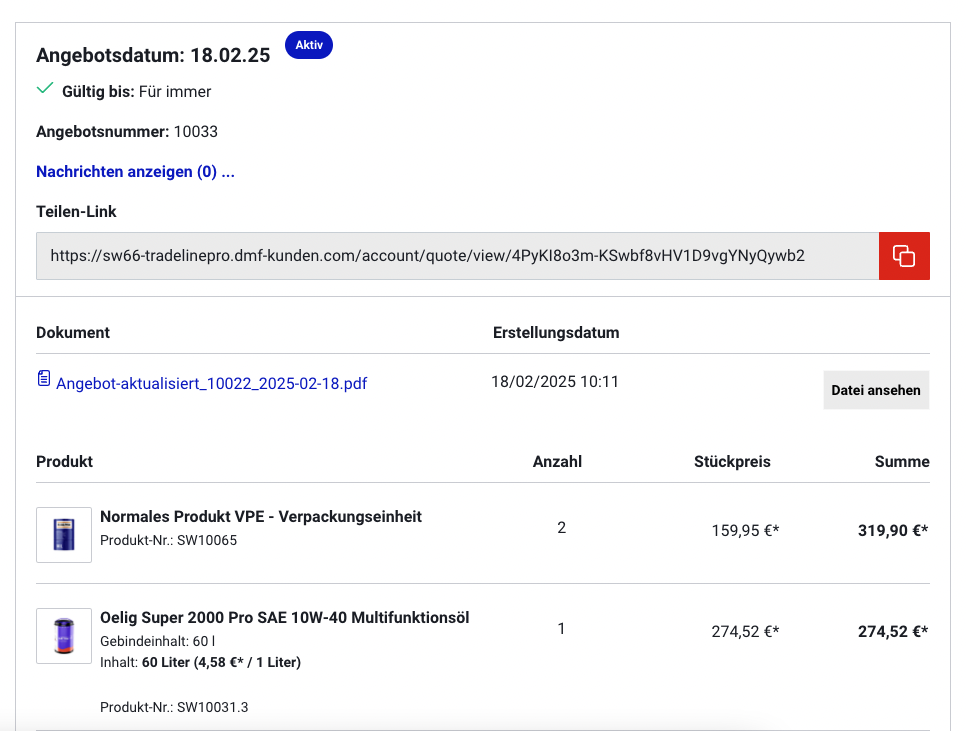
If the user has a customer account, they can now manage their quotes under a separate menu item in their account.
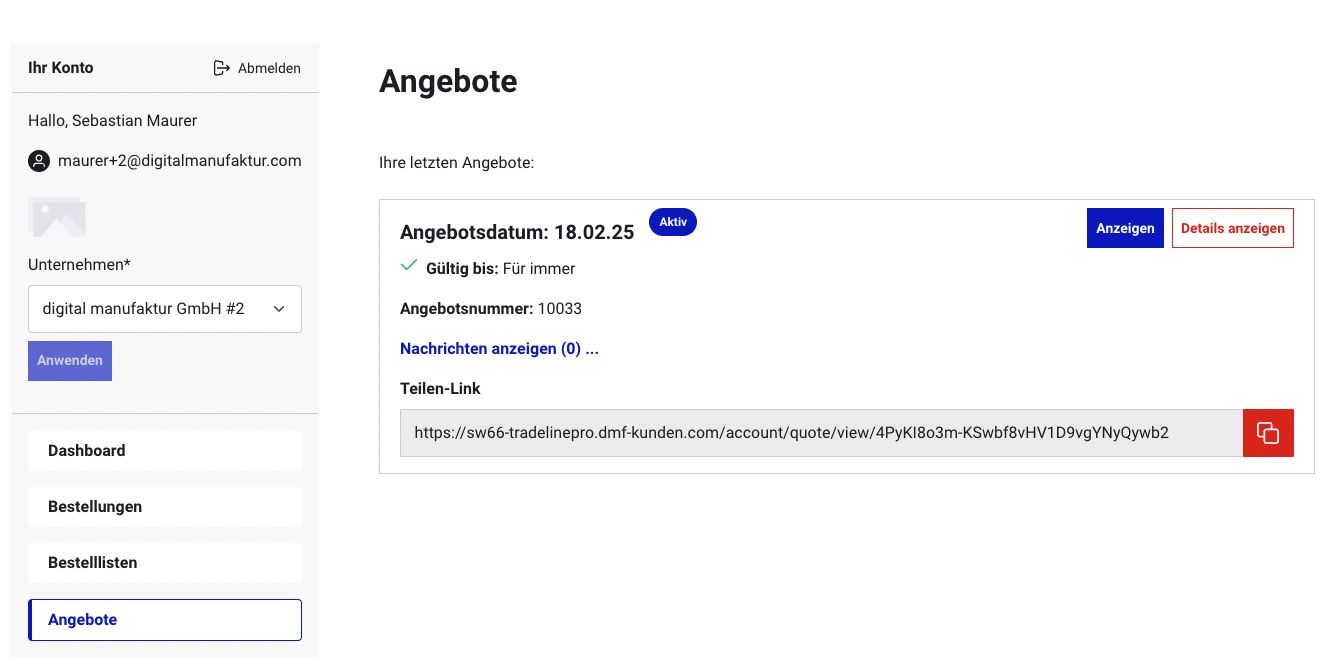
The user can now add the products from the quote directly to the cart.
In addition, you as the shop operator and the user can exchange messages about the quote via a comment function. These messages are stored on the quote and additionally sent by email.
You can disable this function for the sales channel.
Shop Operator Perspective
Quotes can currently only be created from the storefront. Quote management is done in the Orders → Quotes menu item and essentially corresponds to the procedure for orders. A list provides an overview of the quotes, which you can browse.
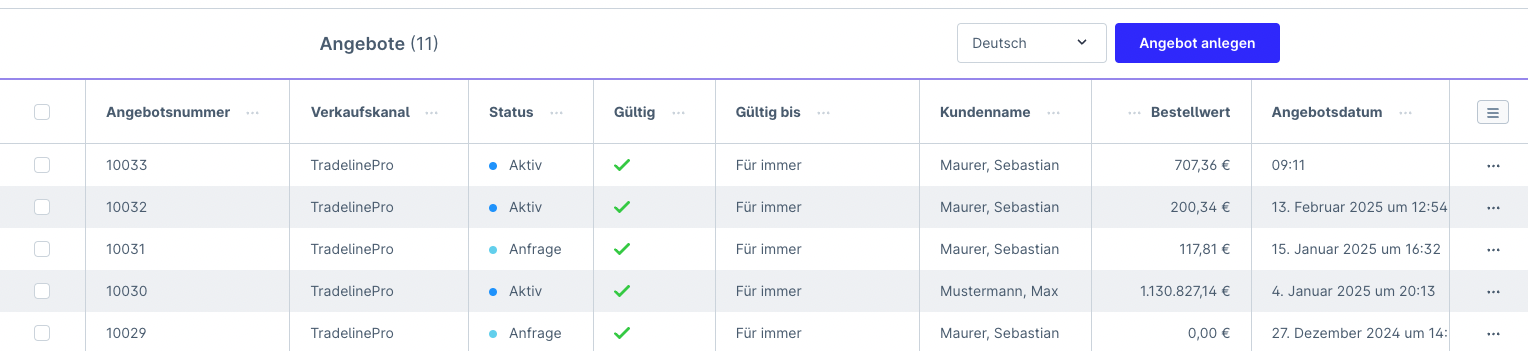
To edit a quote in detail, open it by clicking on the row. You will get a view with various tabs and information within them.
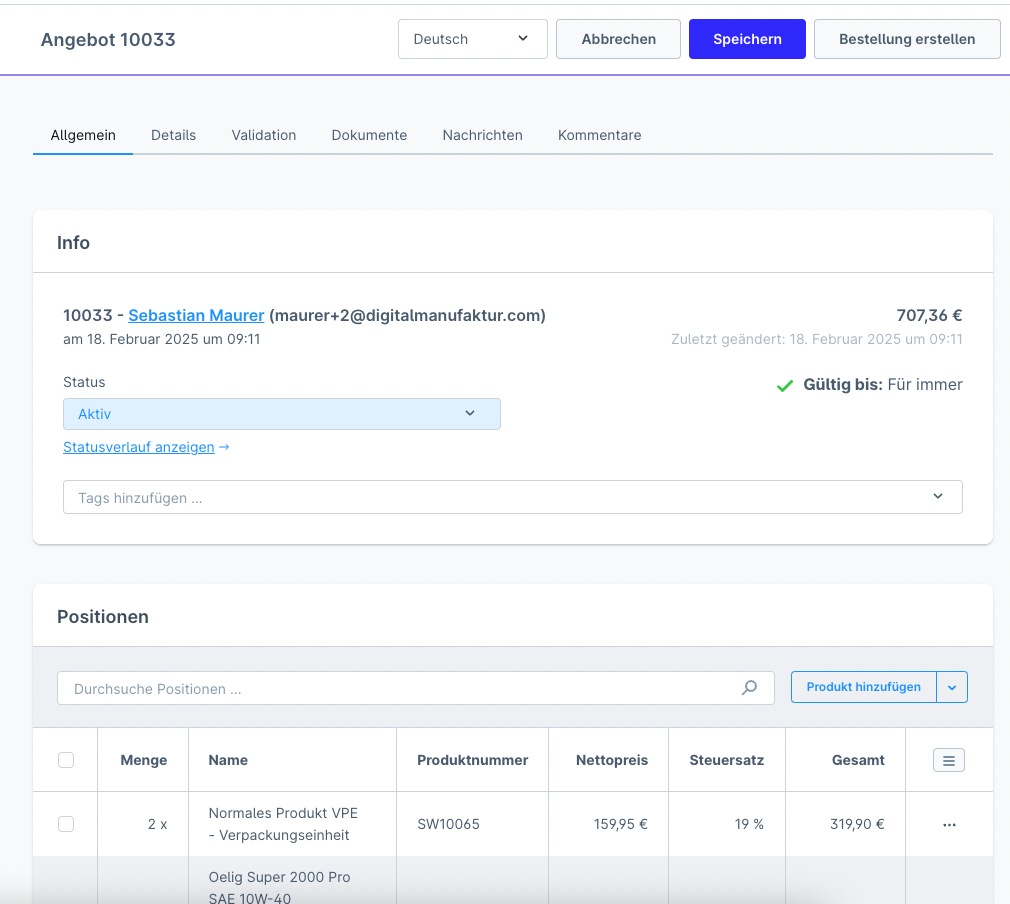
Sending a quote to the customer
If you have not activated pro-forma quotes (automatic quotes), a quote request from your customer is followed by you creating a formal quote for your customer.
In this work step, you can:
- Adjust, remove or add products
- Adjust the price of a product, define the validity of a quote
- Adjust the quote recipient
In the case of a request from an existing (registered) customer, the quote is automatically linked to the user's account.
Status flow
The intention of quote management in TradelinePro is that quotes can be passed through the shop and also purchased directly. For this it is necessary that each quote has a status or status workflow:
| Status | Meaning |
| Draft | |
| Requested | When a user submits a quote request, the quote is set to "requested". As the shop operator, you must now respond and create a valid quote from the request. (As described above, you can also do this automatically directly after the request. This makes sense in cases where only pro-forma quotes are involved.) |
| Active | If you set the quote to "Active", the user can now add the quote (or individual items) to the cart and order it under the set terms. The quote PDF is created automatically when set to "Active". |
| Ordered | The quote is deactivated with the "Ordered" status when items from the quote have been ordered. |
| Expired | You can deactivate the quote manually (regardless of the validity date). Ordering the items is then no longer possible. |
You can control the status via a selection:
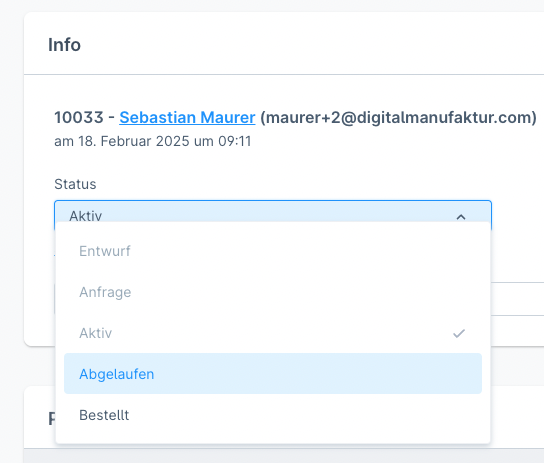
Status changes are logged and can be viewed by you.
A quote must be set to "Active" for the user to be able to accept it.
Changes to a quote
You can revise a quote at any time (as long as no order has yet been generated from the quote).
Please don't forget that you may need to recreate the PDF in this case.
Customising the PDF document
???
Configuration
| Show checkboxes in the cart to specifically add products to the quote | |
| Redirect to the cart page instead of the quote confirmation page | |
| Empty the cart after submitting the quote | |
| Automatically create the quote document after quote submission | |
| Set a quote to "Active" status after quote submission | |
| Allows the creation of any number of orders (by default, only one is allowed) | |
| Allow editing of the quote when the order has been created | |
| Quote valid until (default value in days) | |
| Text shown before the order item (default value) | |
| Text shown after the order item (default value) |