
Shop operator (Backend)
Tasks of the shop operator in the sales context.
Creating a sales representative account
Creating a user account for a new sales representative must be carried out in the backend by an administrator.
Proceed as follows:
- Only individual user accounts can be equipped with the sales representative function
- Select an existing individual user or create a new user
- Open the user's edit view
- Select the customer group "Field sales customer group"
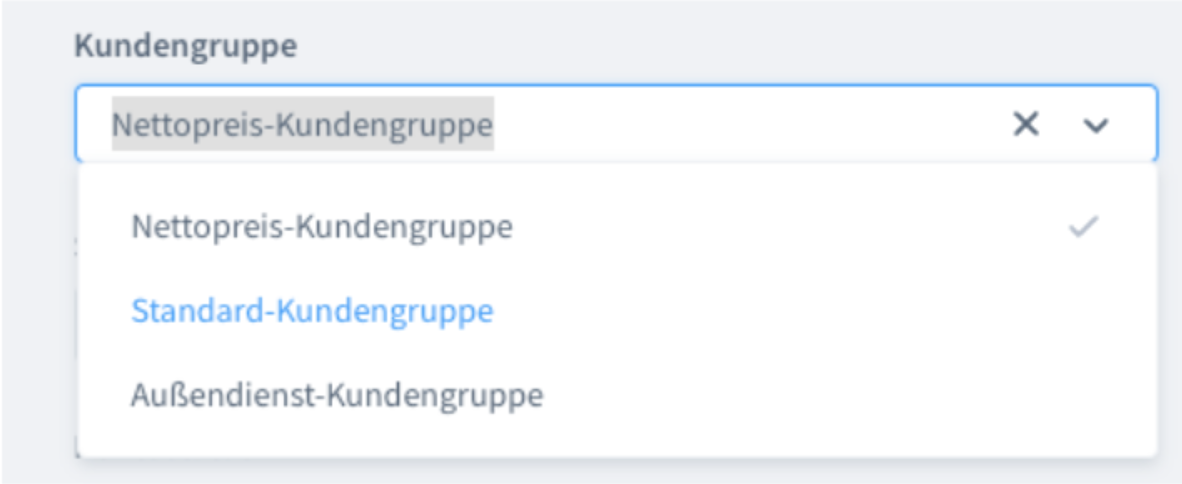
As soon as a user is in this customer group, the corresponding menu items appear in their customer account in the frontend.
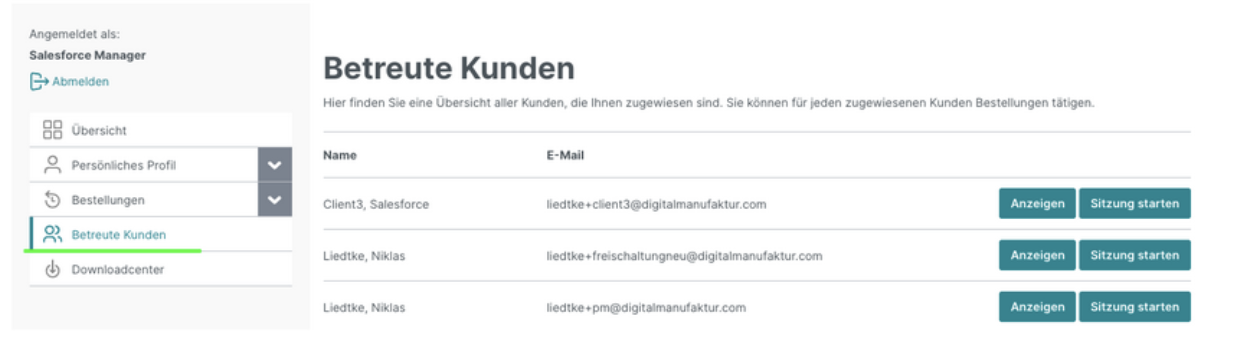
Assigning the sales representative to companies
In order for a sales representative to be able to access certain companies, they must be assigned accordingly by you as the shop operator.
Proceed as follows:
- Open the sales representative's user account
- Open the "Sales representative" tab
- Select one or more companies
- Save the record
or
- Open the relevant company
- Open the "Sales representative" tab
- Select the user
- Save the record
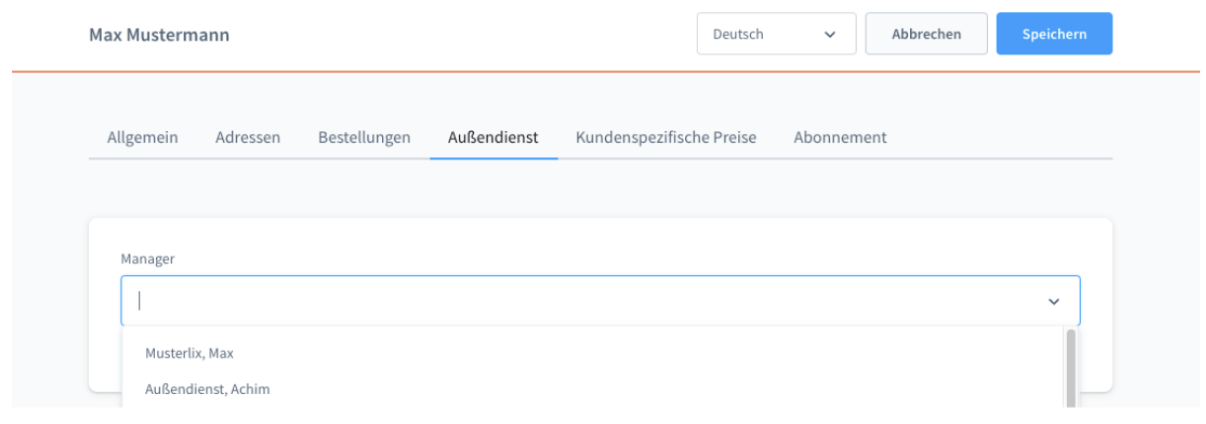
You can configure in the sales channel (see below) whether an assignment takes effect directly or whether the company has to actively approve it. The default setting is direct assignment without separate approval.
Once the assignment has taken place, the sales representative is either assigned directly or sends the respective company a request for approval (depending on configuration, see below).
Assigning a sales representative to a company triggers an email. The content, or the subsequent process, depends on the configuration.
| Direct activation | The company receives a notification that a sales representative has been assigned and can view the customer account. |
| Prior approval | 1.) The email the customer receives, informing them about the assignment, contains a link that allows direct confirmation: XXX IMAGE XXX2.) In the customer account in the frontend, the customer can likewise confirm or reject the assignment: XXX IMAGE XXX |
Emails
The sales representative module ships with two emails.
Both are integrated according to the Flow Builder logic and can be edited there - just like the other notifications.

| Sales representative assigned | The email "Sales representative assigned" is triggered when a field sales representative is assigned to a customer in the backend. This email is received by all users with the "Administrator" role of the company. The message contains a link with which the user can directly confirm the assignment. Alternatively, they can also accept or reject it via their customer account in the frontend. |
| Sales representative was accepted | If accepted, the email "Sales representative approved" is triggered. This email is received by the sales representative (user). |
Audit log
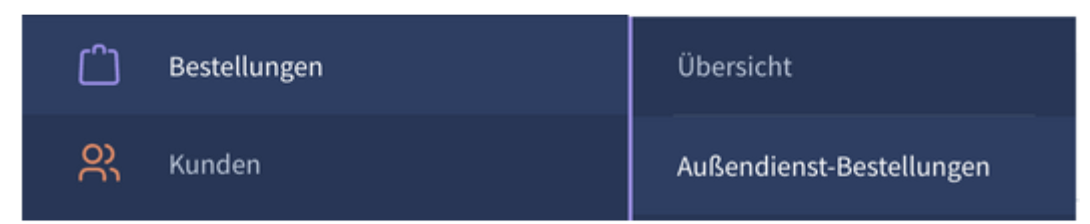
So you can also trace later which sales representative carried out which order, a corresponding list of all orders placed in field sales mode is provided for you as the shop operator in the backend. It can be found here under "Orders" => "Field sales orders":
Configuration
As shop operator, you can control how the sales mode works in some details via configuration.
| Active | This setting allows the module to be activated or deactivated in the frontend. If this setting is not active, the functions of the module are not visible. |
| Approval required? | If this setting is active, a customer must confirm every sales representative assigned to them. This function is explained in more detail in the process descriptions above and below. Only with this confirmation can the sales representative access this customer's account and look after them. If the setting is not active, the field sales representative can support this customer directly after the assignment in the backend. |
| Order amount | The default monthly purchasing limit for a sales representative can be set here. This setting can also be set individually per employee/customer; this process is described further below. |
| Tax rate of individual product | This setting defines a default for the tax rate of the individual product (see explanation below in the process description) that a field sales representative can purchase for their customers. This setting does not normally need to be changed. |