
Order Lists
Save recurring orders as a list and execute them.
Order lists give the user the ability to create various lists of products that are stored in the customer account. This is particularly helpful when similar carts are frequently purchased, as the list(s) simplify the cart composition process.
The lists can be shared with other people. A list can be added to the cart all at once.
The module replaces the simple wishlist that is available in the Shopware standard.
Users can add products to a wishlist both from lists (categories, search results) and from the product detail page.
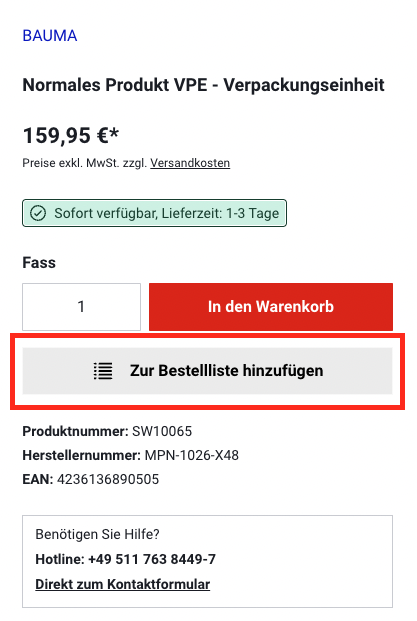
Multiple order lists can be maintained in parallel. The selection of which order list a product is placed on is made during the process via a simple selection.
Order lists can be accessed and managed in the account area.
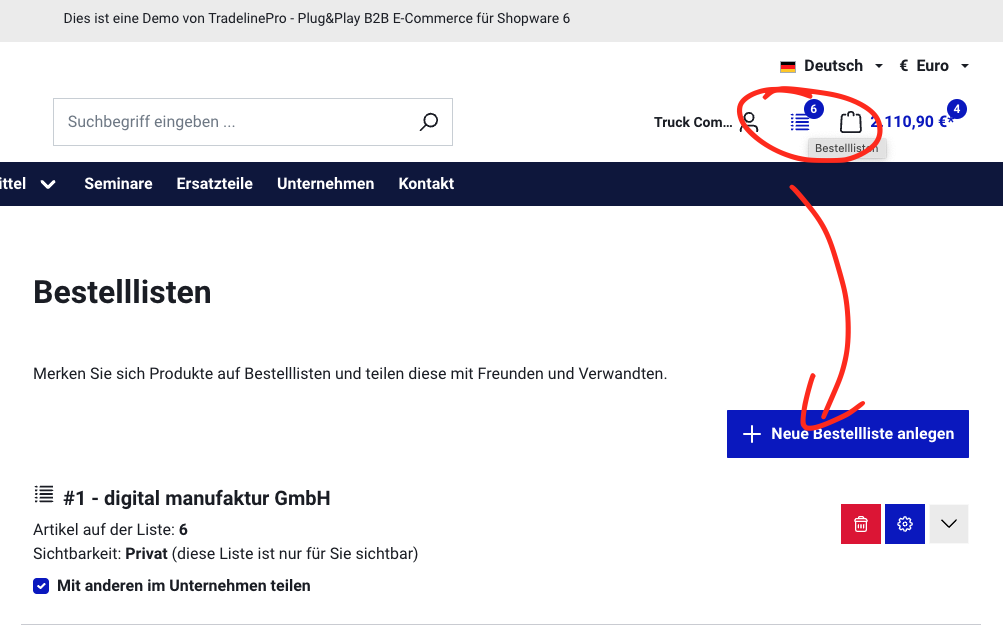
Users can add complete lists or individual products directly to the cart from there.
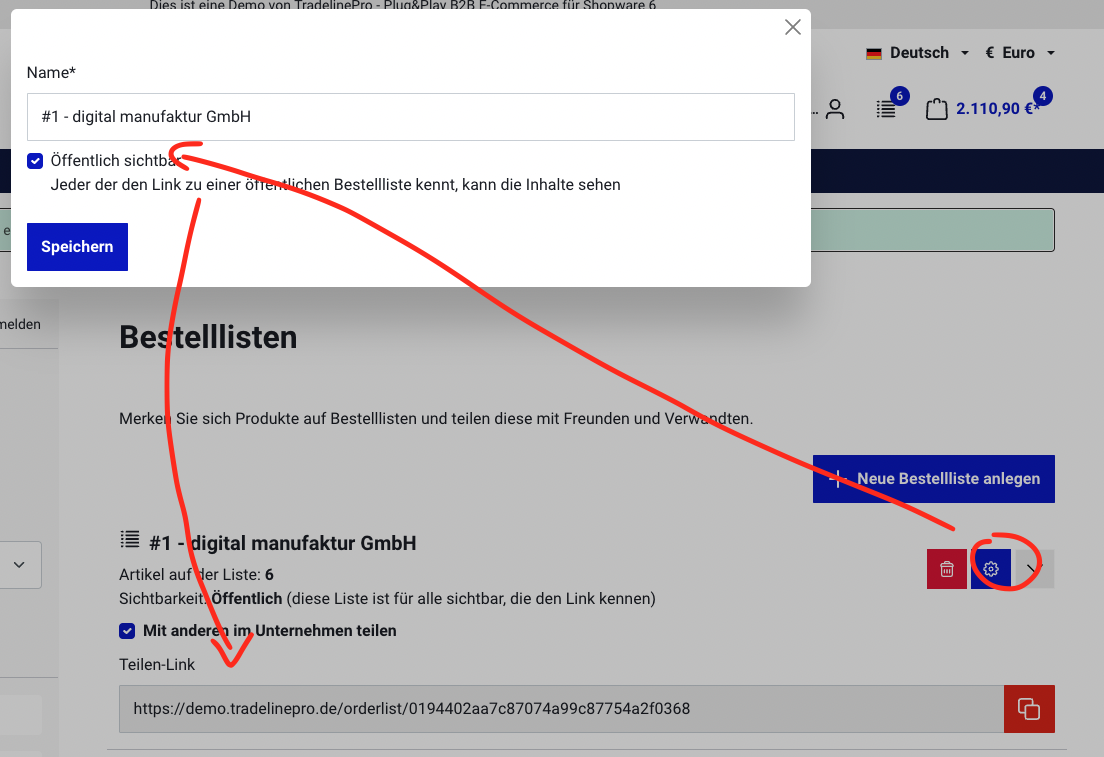
It is possible to share an order list with third parties outside the company account by creating a secret link.
Create an order list
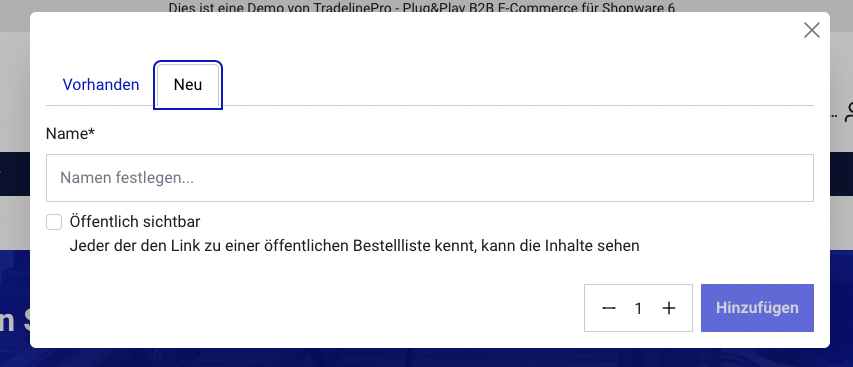
There are two ways to create an order list. The first way is to add an item to a list. During this process, you can select an existing list or create a new one:
The other way is to create the list in the customer account.
Edit an order list
Each order list can be edited in the customer account. You can adjust the name and visibility there, as well as either remove the products, move them to another list, or add them to the cart. You also have the option to delete the list.
Add a product
A product can be added to an order list in various ways. Depending on the setting in the plugin configuration, the following ways are possible:
- From the category page
- From the product detail page
- From the cart
- From the checkout
Share an order list
If the visibility is set to "Public", the plugin automatically generates a link to view this specific list without editing functionality. This makes it easy to share a list with others.
Configuration
s
| Display in product listing | 1. The "Display in product listing" setting controls whether a button or icon for directly adding a product to an order list is shown on the product tile on the category pages. With the "No" setting, no button is displayed. |
| Show order lists icon in the header | 2. The "Show order lists icon in the header" setting controls whether an icon for the order lists is shown in the header. If visible, this provides a direct link to manage the order lists. If you deactivate the setting, the order lists can only be reached via the customer account. |
| Product quantity as text field | Here you can set whether the quantity of products on order lists is selected with an input field or a dropdown. |
| Show in off-canvas cart | This setting controls whether the order list function should be active in the off-canvas cart or not. If active, you can save the current cart as an order list. You can also select from existing lists and add them collectively to the current cart. |
| Show in cart | 5. This setting controls whether the order list function should be active on the cart overview page or not. If active, you can save the current cart as an order list. You can also select from existing lists and add them collectively to the current cart. |
| Show in checkout | This setting controls whether the order list function should be active in the checkout or not. If active, you can save the current cart as an order list. You can also select from existing lists and add them collectively to the current cart. |
| "Add all to cart" button | This setting controls whether a button is displayed in the detail view of an order list with which all items can be added to the cart at once. |
| Show cart button for each item | This setting controls whether a button is displayed in the detail view of an order list with which all items can be added to the cart at once. |
| 8 | This setting controls whether an individual "Add to cart" button is shown for each product in the detail view of an order list. |
| 9 | This setting controls whether the product number is shown for products in the detail view of an order list. |
| 10 | This setting controls whether sorting is possible in the detail view of an order list. |
| 11 | This setting controls whether a search bar is shown in the detail view of an order list, with which a further product can be added to the list by searching by product number. |