
Managing customer accounts as a shop operator
Manage customer accounts from the shop operator's perspective.
TIP
The following explanations apply to B2B mode.
B2B user accounts, as described in the "Master data" chapter, correspond to an organisation. This organisation must be linked to at least one person, i.e. one personal user account. Management is handled overall via the "Customers" menu.
Behind the "Overview" menu item you will find the list of individual user accounts. The "Organisations" menu item leads to the organisations. The "Open registrations" list shows the subset of organisations awaiting approval.
The "Employee accounts" menu item lists all associations between an organisation and a user. Users may therefore appear multiple times in this list.
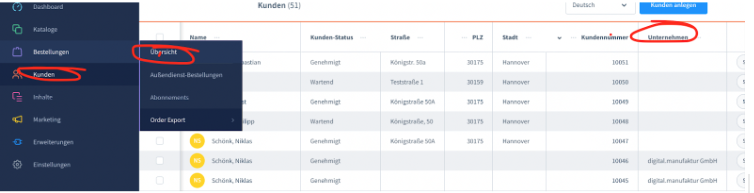
In addition, the users (of an organisation) can be reached via the administration view of the organisations. At this point, the focus is primarily on the assignment of individual users to the organisation and the associated settings.
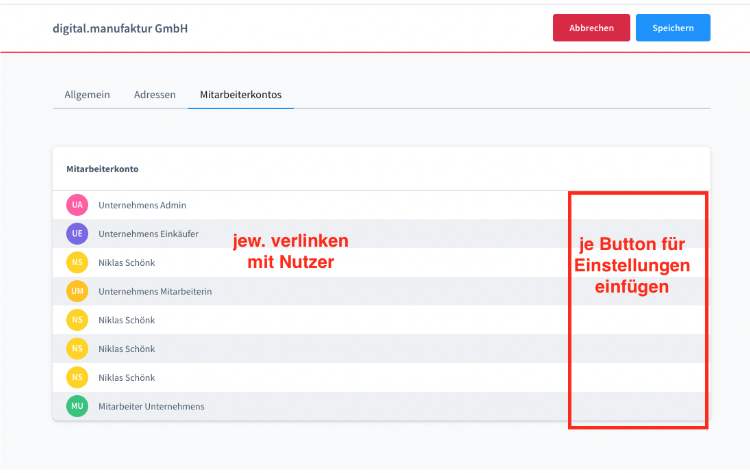
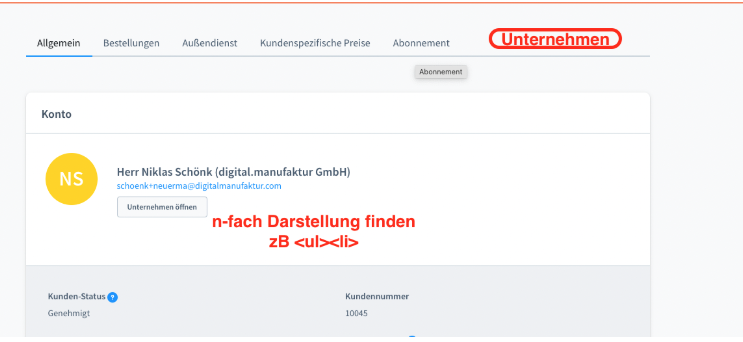
In the view of the user account, you can in turn see all organisations linked with the account.
Manage organisations
Organisations can be managed by the shop operator in the administration area. To do this, go to the menu Customers → Organisations.
You will see an overview with company names and customer numbers. Clicking a row opens the detail view.
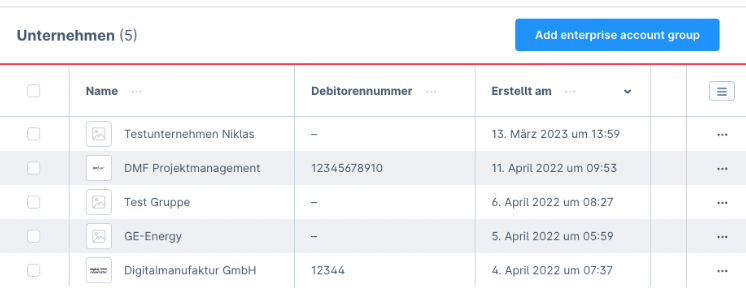
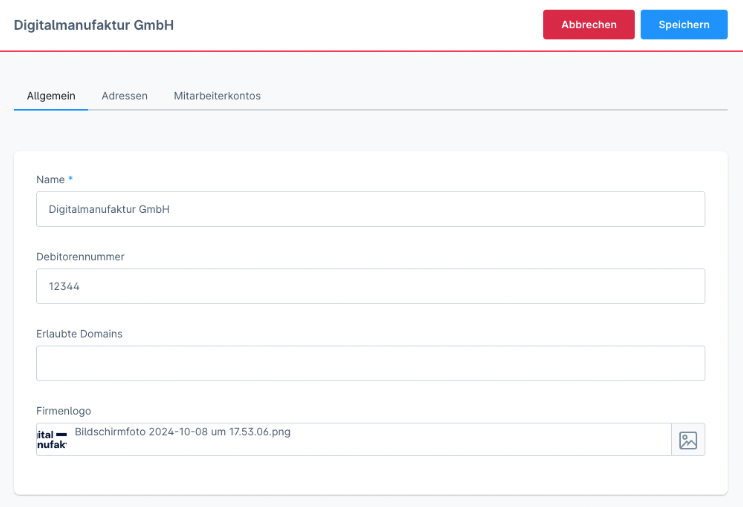
In the detail view, general information, addresses and the associated employee user accounts can be maintained.
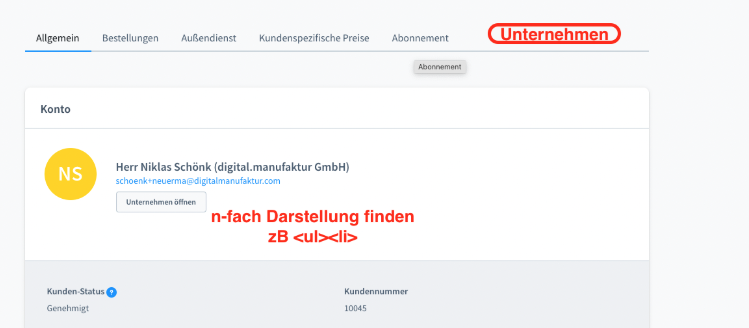
The user account overview and the user account itself also indicate the account's affiliation with an organisation.
Create a shop account via the backend
To create an organisation, open the area Customers → Organisations in the administration area.
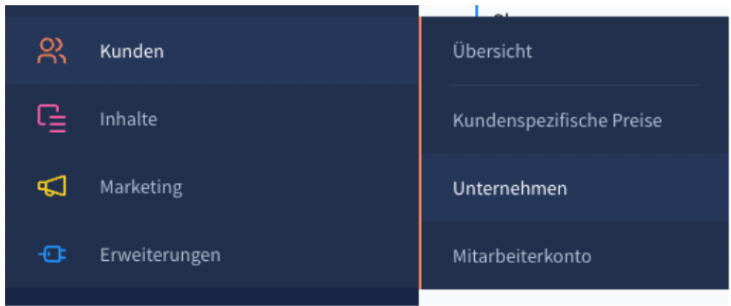
There you see a list view of all existing organisations and can create a new organisation via the "Add organisation" button at the top right.
The following fields are requested at creation:
The name is the name of the organisation; a debtor number can optionally be assigned, as can a logo. The allowed domains setting refers to the search for existing employee accounts – more on this later. It is sufficient here to store the domain in the format xy.com. Once you press "Enter", the domain is added and you can store another one.
Since an organisation must always be associated with a natural person, you can proceed as follows:
- Click the "Add new user" button.
- Enter the essential master data of the user
- Email address
- First name
- Last name
- The user is then created as a user and linked to the organisation. They also receive the welcome email.
- Enter the essential master data of the user
- Skip the contact person (simply leave it empty). Then assign an existing user account to the organisation via the search in the employee management (--> see below)
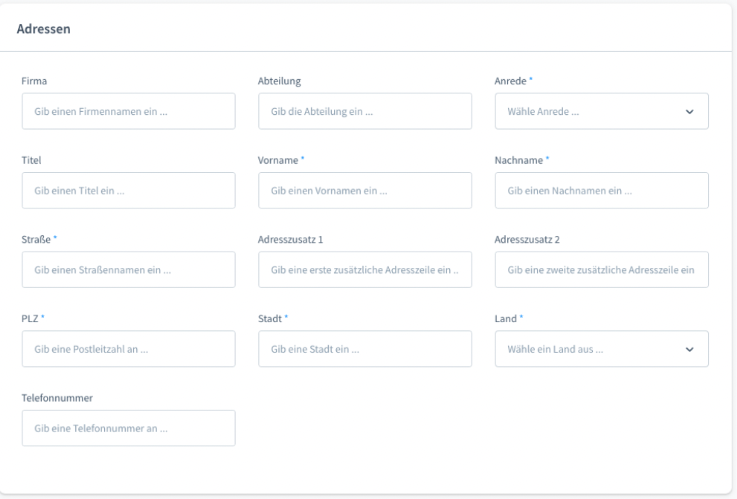
After creating a new organisation, please also add the organisation's addresses.
Add and manage users in the backend
To add a user as the shop operator, open the organisation and proceed analogously to creating a new organisation.
- Click the "Add new user" button.
- Enter the essential master data of the user
- Email address
- First name
- Last name
- Enter the essential master data of the user
- The user is then created as a user and linked to the organisation. They also receive the welcome email.
Assume the user's identity in the storefront
https://digitalmanufaktur.atlassian.net/browse/TRADELINE-460