
The customer account in the storefront (customer perspective)
Features that customers see and use in their own account.
Introduction
A customer account is provided for B2B users that is tailored to the specific requirements of organisations.
In B2B mode, no individual user accounts are offered. Every person (with a user account) automatically always acts in the context of an organisation. The essential settings and master data are set by the organisation.
The following building blocks are provided: ???
Login / customer authentication
TradelinePro offers shop users two options for authentication:
- Email: the integrated standard method. Customers sign in with their email address and a password.
- Identity provider / single sign-on: users use the credentials of an external identity provider. This enables simple and secure authentication. More information can be found under "Single sign-on".
Redirect after login
Depending on the business process and configuration of the online shop, certain features in the webshop are only available to signed-in users (e.g. the order list). To give the user a good buying experience, the login is carried out directly where the user currently is, or they are returned to their current position.
Forgot password
If customers have forgotten their password for signing in to the TradelinePro webshop, they can click the "Forgot password" link on the sign-in page. Customers can reset it themselves by entering the valid email address linked to the shop account.
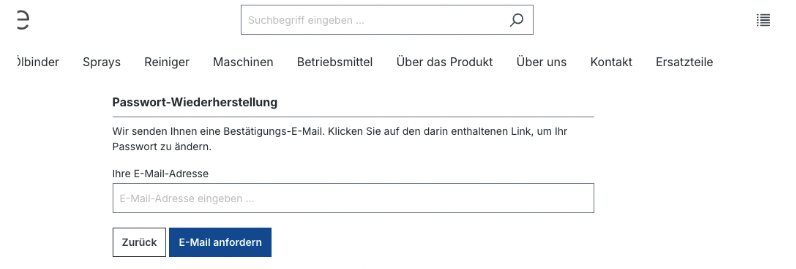
The password reset link that customers receive in the email is valid for 10 minutes. Only the most recent password reset link is valid.
Alternatively, as a shop administrator, you can specifically define a customer's password. You should only do this in exceptional cases and, for data protection reasons, offer the customer the self-service feature.
Open the individual user record, click Edit and fill in the two "Password" and "Confirm password" fields.
Dashboard
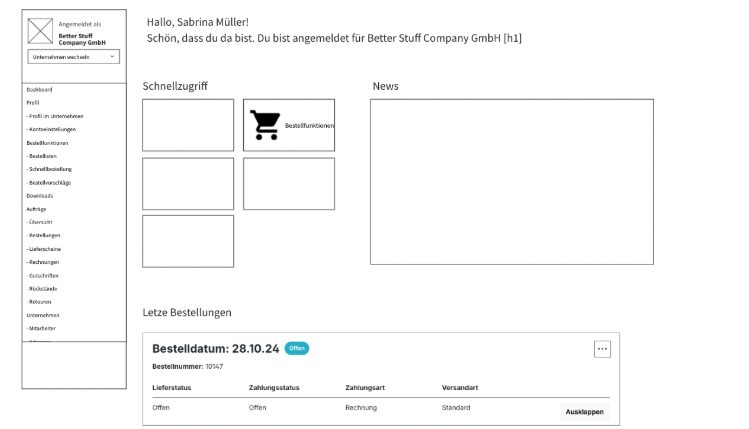
The dashboard greets the users of your B2B shop and provides several tools for quick access:
- Tiles can be defined for quick access to important features (the shop operator creates these globally for the respective sales channel)
- Via the "News" area, relevant information can be presented directly visibly to users
- The list of the last five orders gives direct access to the processing status of current orders
Switching between organisations
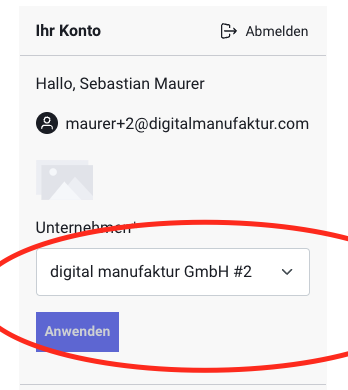
It is possible to give a person access to multiple organisations. The user always acts specifically in the name of the organisation context. In one session, the context cannot be mixed within a browser window.
The organisation is selected via an intuitive selection feature in the account area:
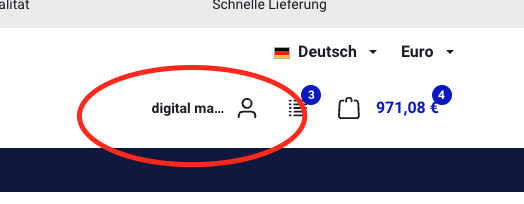
The currently active organisation is shown in the page header:
Personal profile
In the personal profile, a user can maintain their individual master data. This data is used outside the organisation context and is not overwritten by it.
- First name and last name
- Email address
- Password
This data applies regardless of the current organisation (organisation context).
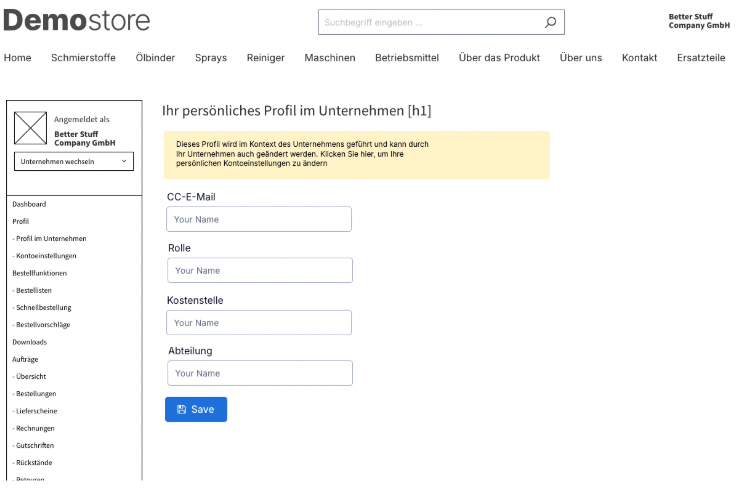
Personal settings in the context of the organisation
In the personal profile in the context of the organisation, those views are shown that concern a user but are directly related to the organisation.
Typical data fields are: ???
Organisation profile
In the organisation profile, your customers manage their organisation.
Only users of the type "Company manager" can edit the data in accordance with the global settings (--> see above, shop operator context). Other roles only have an info page available in this menu item.
For management, the user opens the organisation profile.
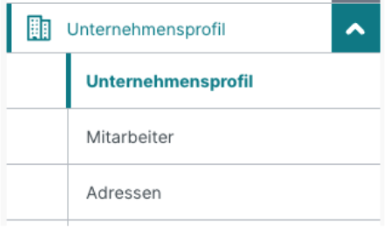
In the "Organisation profile" area, the organisation's master data can be edited.
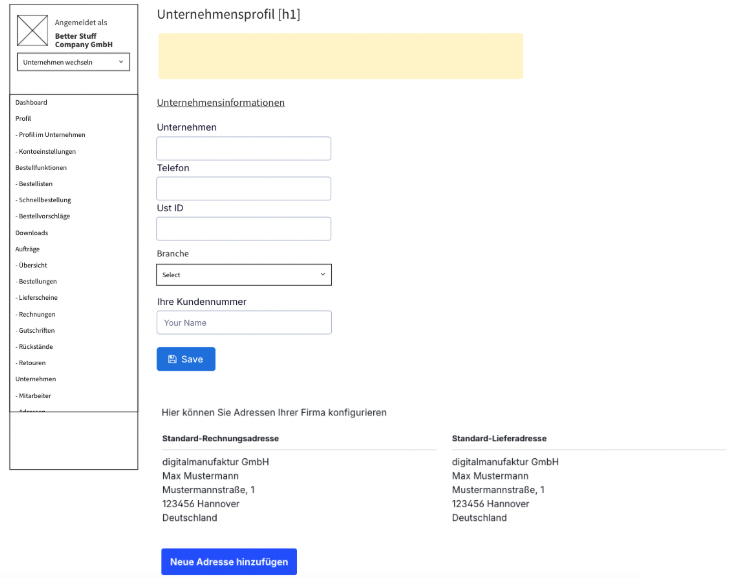
In the "Addresses" menu item, the user can add new delivery addresses, delete or edit existing ones, and set the default delivery address.
Depending on the configuration (global for all organisations of a sales channel), the billing address is either editable or read-only.
If as the shop operator you forbid customisation of the billing address (<<
This route is particularly useful if your process binds certain activities to a change of billing address, or if this has not been solved via synchronisation with the ERP.
Employees, roles & rights
Employees can be associated with an organisation. Just as you can as a shop operator, all users with the "Company manager" role can invite further users into the organisation, edit their organisation-specific master data and also remove these users from the organisation again.
Via the roles and rights, an organisation can equip the users of an organisation with capabilities matching their areas of responsibility, or withhold them. It is, for example, possible to enable certain users only to maintain order lists (and thus order templates), but not to place the final order.
As the shop operator, you cannot currently set these roles and rights on users. This can only be done from the customer account in the storefront.
Employees
The term employees refers to individual users associated with an organisation and who have access to that company account.
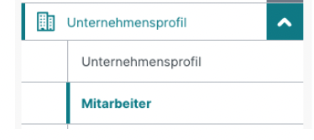
A special kind of employee is the so-called administrator user. This is the manager of the company account with full functionality. For example, the user who creates a company account is initially automatically created with this role.
Via role management, further users can now be added. Only users with the "Administrator" role can use the employee management.
The employee management is opened via the menu item Organisation → Employees. There you see an overview of all employees of the organisation:
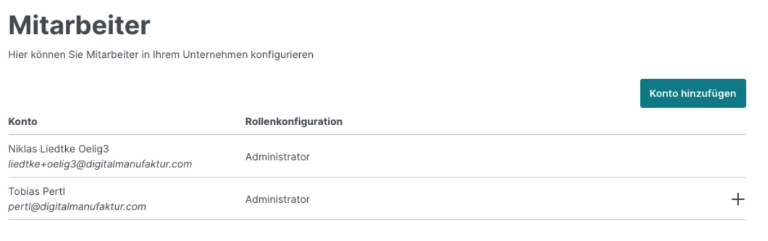
Adding a new employee is possible at this level by clicking the "Add account" button. Then the entry mask for the new employee's data opens:
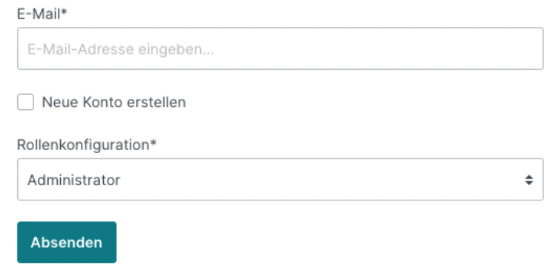
There you enter the email address, salutation, first name and last name as well as the role. The person then receives a welcome email and can set a password.
TIP
If a user is already registered in another organisation, the user then receives a notice that they have been assigned to a new organisation. For data protection reasons, no differentiated information or notice is shown in the storefront.
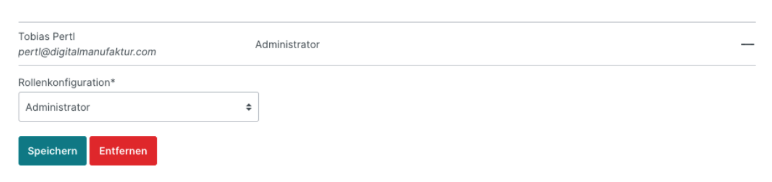
You can also change the role of an existing employee here, or remove them:
TIP
If a user is removed from an organisation, that user only loses the association to the former organisation. If the user is still associated with another organisation, the user can continue to access that organisation as defined. In any case, a user is not deleted from the storefront by being removed from an organisation.
Roles
Via the roles, the capabilities of users in the context of an organisation can be controlled.
Depending on the needs of an organisation, these roles can be used for various purposes:
- Departments can be modelled
- Rights can be granted
- and much more
Management of the roles for the organisation is only possible by company managers.
To do this, in the frontend select "Organisation profile" => "Roles and rights management":
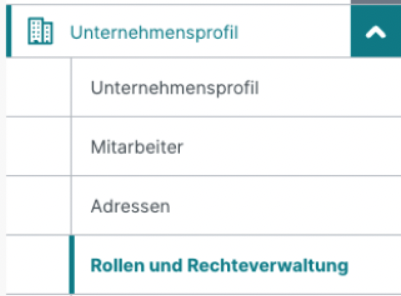
There the roles that have already been created are listed directly. You can now edit or delete them. You can also add a new role via the "Create role" button. The "Administrator" role is provided by the system and cannot be modified or deleted.
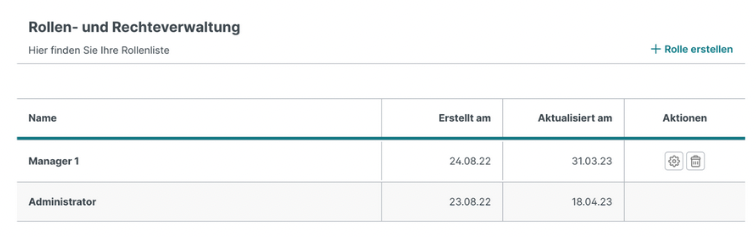
A role always consists of a label and the associated rights.
All settings always apply from the perspective of the organisation.
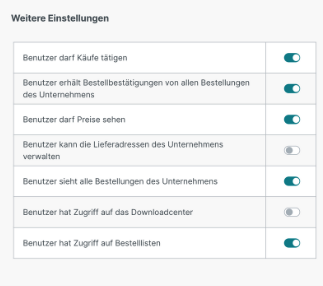
The following rights are available.
| User may make purchases | If this permission is active, a user of this role can make a purchase in the shop. Without this permission, the user cannot buy because the basket and checkout process is not available to them. |
| User receives order confirmations for all of the organisation's orders: | If this setting is active, a user of this role receives the order confirmation for any of the organisation's orders (including those by another user). Without this permission, the user only receives order confirmations for their own orders. |
| User may see prices: | If this setting is active, the user sees prices. Without this permission the user cannot see any prices. They can still buy. |
| User can manage the organisation's delivery addresses: | If this setting is active, the user can edit existing delivery addresses of the organisation and add new ones. In addition, they see the "Addresses" entry under the organisation profile in their customer account. Without this permission the user can only select existing addresses as a delivery address. |
| User sees all of the organisation's orders: | If this setting is active, the user also sees all other orders of the organisation in their customer account in the order overview, including those placed by another user. Without this permission, the user can only see their own orders there. |
| User has access to the download centre: | With this permission, the user has access to their download centre. |
| User has access to order lists: | With this permission, the user has access to all order lists of the organisation |
As soon as the permission "User may make purchases" has been activated, a further area is unlocked: the order-related settings.
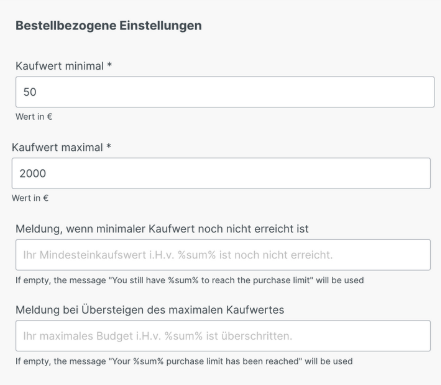
| Minimum purchase value: | This value describes the minimum basket value the user requires in order to complete a purchase. If the basket value is lower than the value set here, the purchase cannot be completed. If no value is set, there is no minimum value. |
| Maximum purchase value: | This value describes the maximum basket value the user requires in order to complete a purchase. If the basket value is higher than the value set here, the purchase cannot be completed. If no value is set, there is no maximum value. |
| Message when the minimum purchase value has not yet been reached: | Here you can edit the warning message the user receives when they have not yet reached the minimum purchase value. |
| Message when the maximum purchase value is exceeded: | Here you can edit the warning message the user receives when they have exceeded the maximum purchase value. |