
Restrictions for customer groups
Restrict and release assortments for groups.
The following items can be restricted:
- Access to categories
- Access to products
- Visibility of prices
- Option to create an order
- Option to create a quotation request
In addition, individual terms can be defined for different customer groups.
In addition to the granular visibility of information, the entire shop can be hidden from users who are not logged in (guests) behind an access barrier.
Categories
Via the category management, you can restrict the visibility of certain categories, or grant access to them only to specific customer groups.
Users without permission cannot reach this category via the storefront and see a barrier screen:
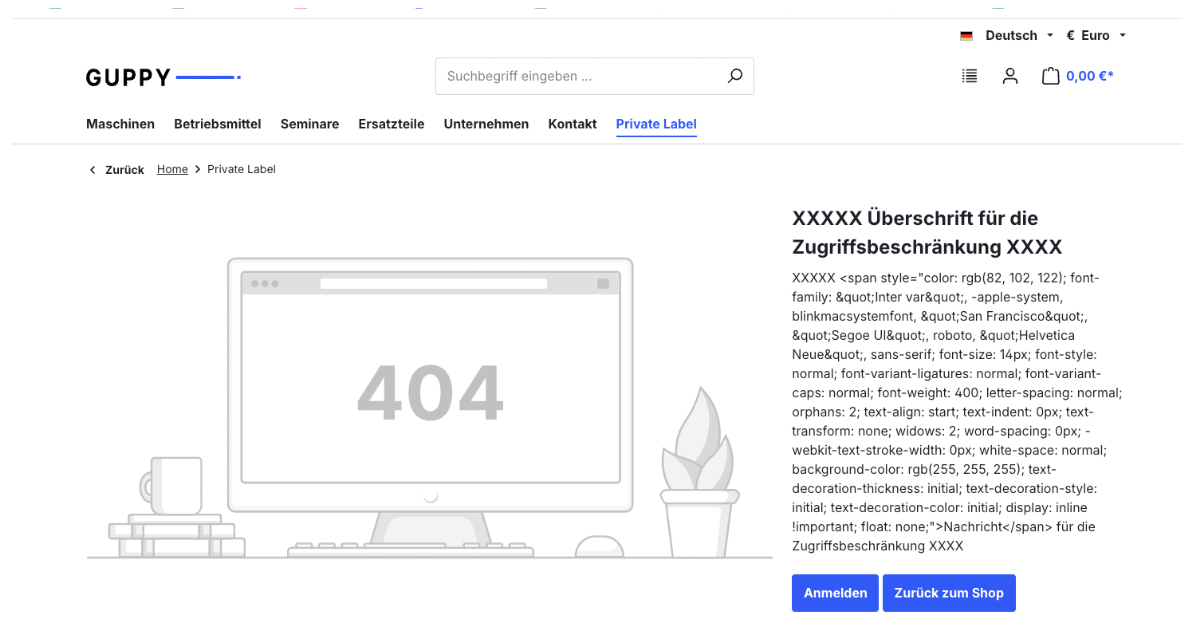
It is also possible to hide the associated menu items in the main navigation for these categories. This behaviour is set for the entire sales channel in the configuration.
To do this, open the category you wish to restrict and scroll down to the "Restricted for customer groups" area.
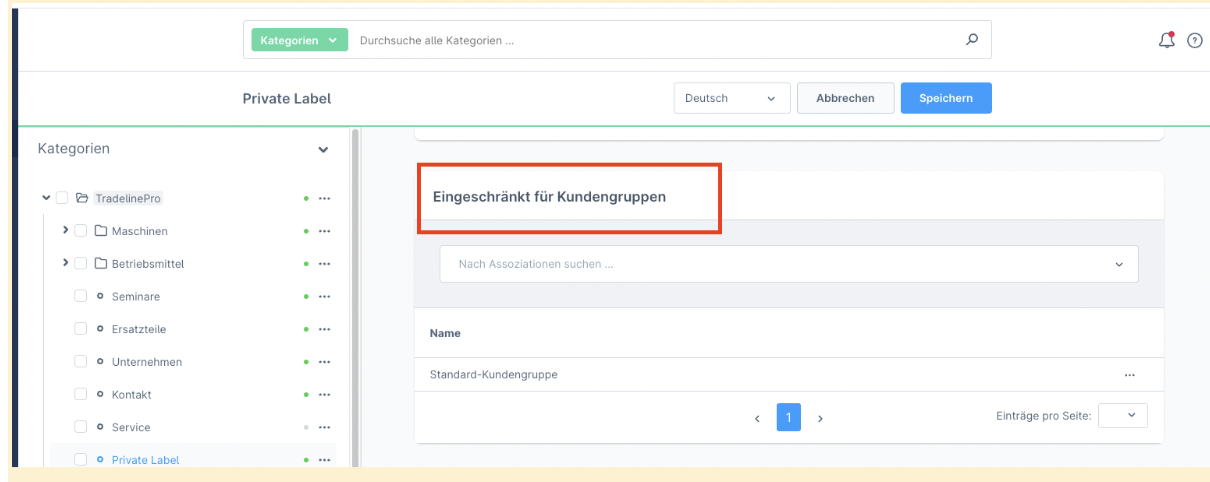
This is a "whitelist" approach, where no setting means that the category is fully visible to everyone.
Customer groups defined in the list subsequently have access to the category. All other customer groups do not.
TIP
Guests (i.e. users who are not logged in) correspond to the "Default customer group" customer group.
Products that are assigned to a restricted category inherit the restrictions of the category. As a result, these products are likewise only visible to the customer groups that have been added explicitly (or to everyone if no restriction has been set).
Products
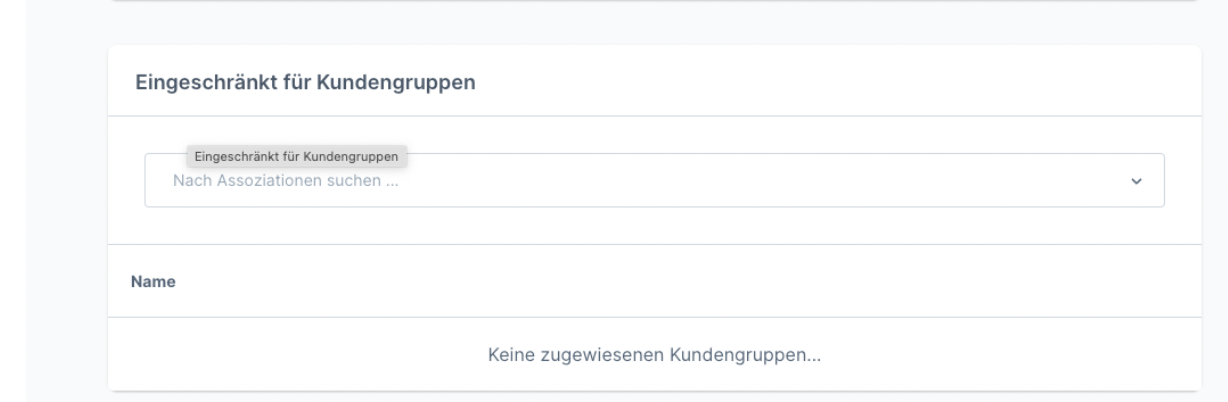
Products can have their visibility restricted or enabled for customer groups in the same way as categories.
To do this, open the corresponding product you wish to restrict and scroll down to the "Restricted for customer groups" area.
Configuration
The configuration is performed in the "Company accounts" module.
Please navigate to the "... for customer groups" area.
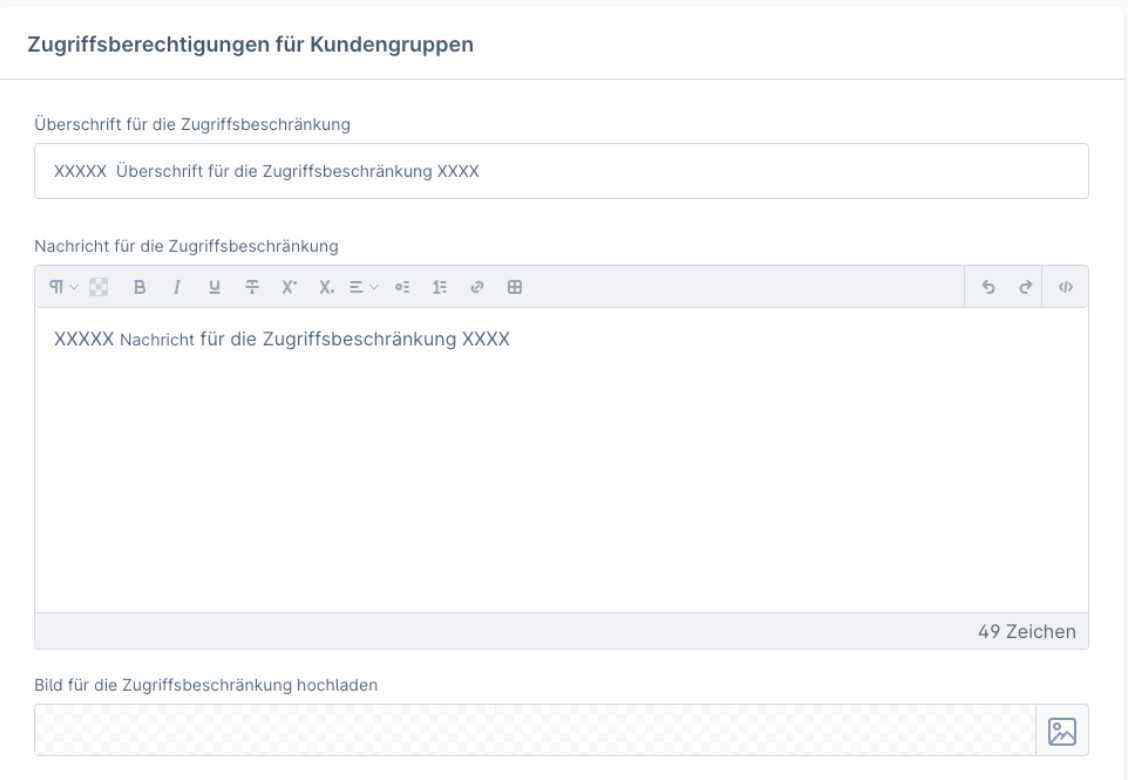
With the following settings, the barrier screen is configured as shown in the illustration.
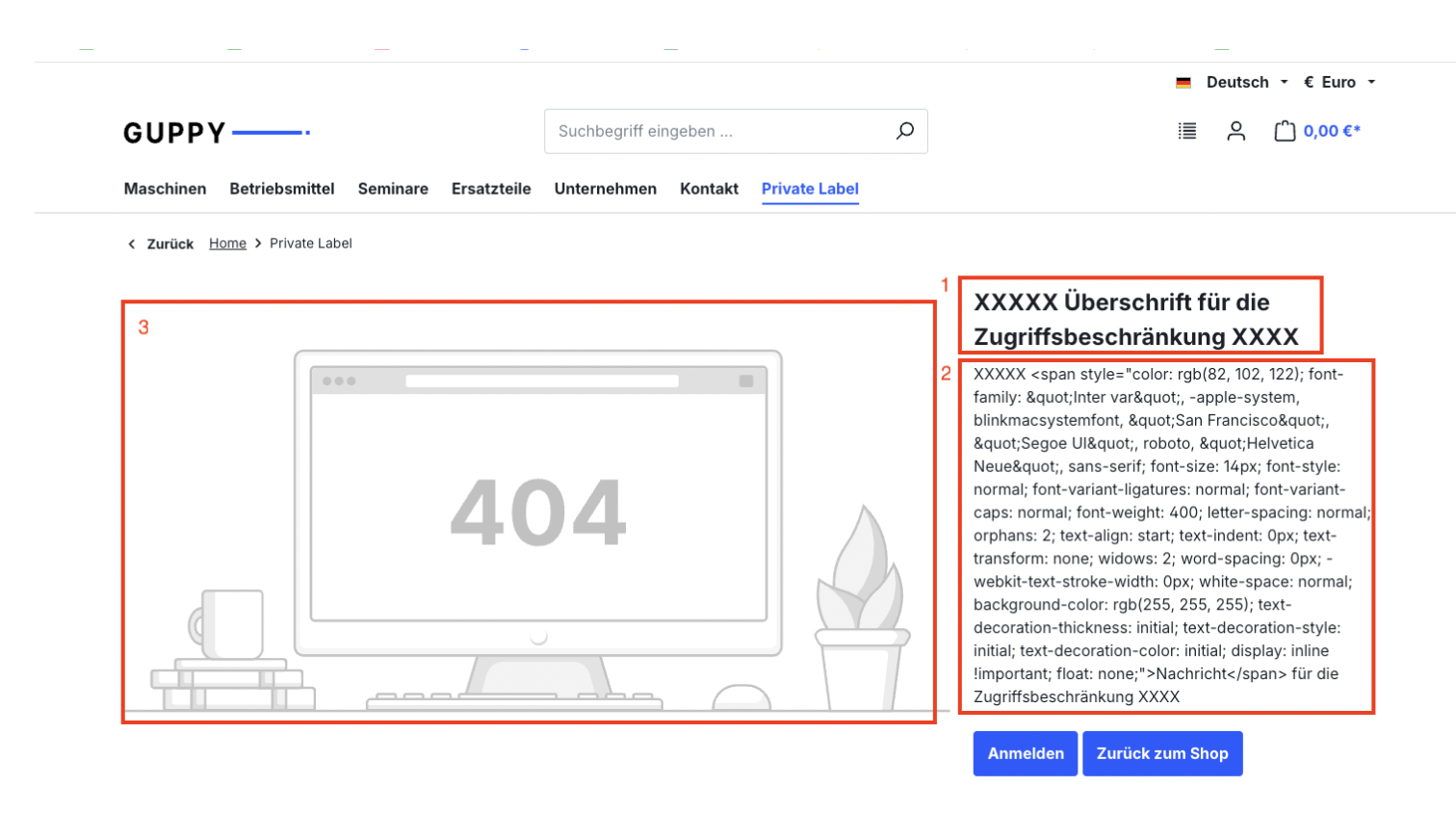
| Heading for the access restriction | The heading appears at position 1. |
| Message for the access restriction | The message appears at position 2. |
| Upload image for the access restriction | The image appears at position 3. |